Visual Studio – Force Backspace to delete tabs

By default in Visual Studio 2010, the backspace key deletes a single character. I believe this behavior changed in VS 2005 but I keep forgetting how to change it. I know you can hold Ctrl+Backspace to delete the tab, but that to me is just slow and unnecessary. 90% of the time, I want to delete the entire tab when I hit backspace.

To make the backspace key delete an entire tab, go to Tools -> Options…, and expand Text Editor -> All Langauges ->Tabs. In the Tab group select the Keep tabs radio button. You can also do this on a per language basis if you wish.

SQL Server: Restoring database backup to different location or name

Performing backup/restore operations are extremely simple in SQL Server. In most cases, it’s as simple as right-clicking on the database in Management Studio and selecting Tasks->Backup/Restore.

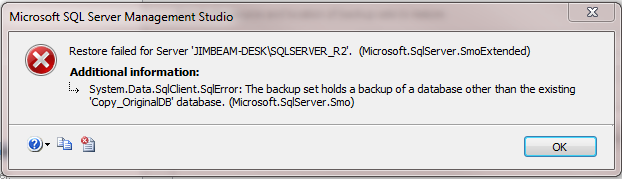
However, if you have ever tried to restore a backup to a database other than the one it came from (such as, same machine/instance with another database name) you may see the following message.

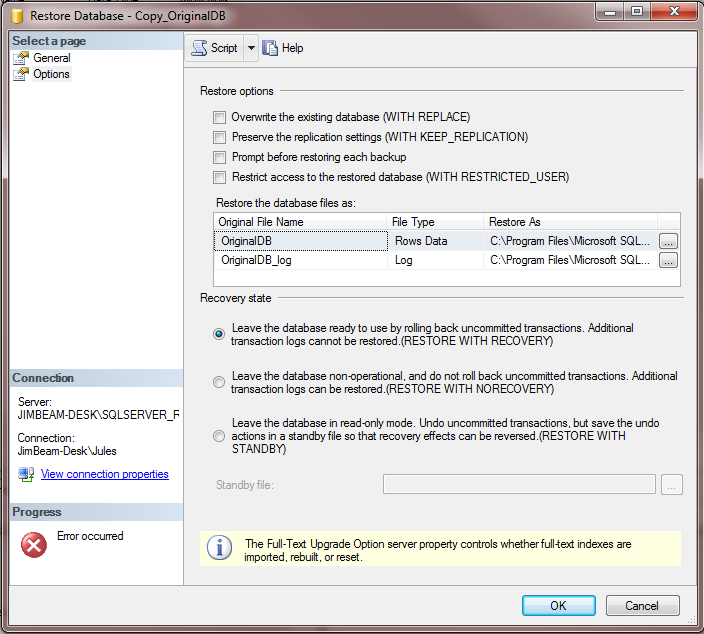
The solution to this problem is to use the Move option on the Restore operation. This can be done in both Management Studio or via T-SQL. However, when trying to use Management Studio, you might ask, “Where is the Move option?” All the other options are labelled beside their appropriate check boxes (all upper case) in the Options page of the Restore Database task

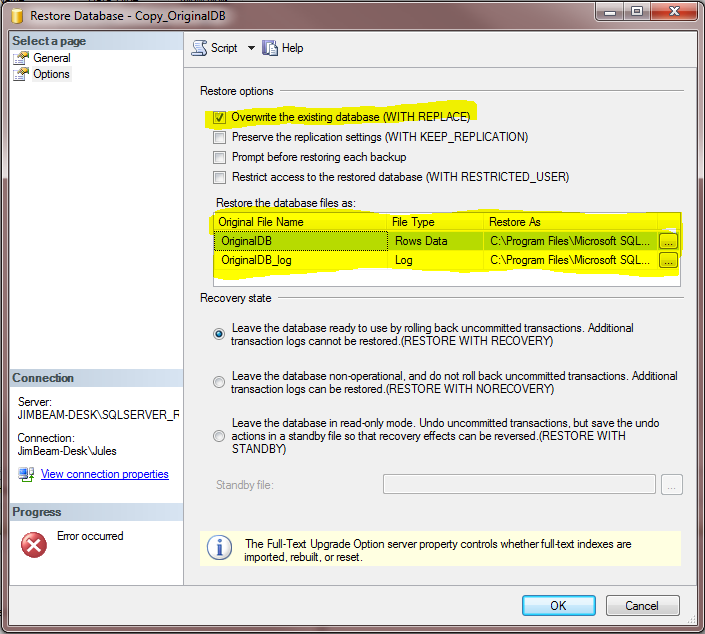
The Move option in Management Studio is actually set when you select different file paths in the Restore the database files as section in the middle of the screen. What you need to do is select a new file location for each file (mdf & log). What I usually do is reset the old paths with the new file paths set up as part of the new database.

Also select the WITH REPLACE option at the top of the screen

In T-SQL you can do the following

USE master;
GO

-- Get number and names of the files in the backup
RESTORE FILELISTONLY
  FROM DISK = 'C:\BAK\OriginalDB.bak';

Gives us information about the files contained in the backup that we can use in the next step

USE master;
GO

-- Do the restore
RESTORE DATABASE [Copy_OriginalDB]
  FROM DISK = 'C:\BAK\OriginalDB.bak'
  WITH
    RECOVERY,
  MOVE 'OriginalDB'
    TO 'C:\Data\Copy_OriginalDB.mdf',
  MOVE 'OriginalDB_Log'
    TO 'C:\Data\Copy_OriginalDB_Log.ldf';
GO

See the following MSDN documents for more info
http://msdn.microsoft.com/en-us/library/ms190447.aspx
http://msdn.microsoft.com/en-us/library/ms173778.aspx 

VMWare ESX – Enable automatic guest startup

I just recently set up my first VMWare ESXi machine at home. I wanted a dedicated virtualization host to test various setups and configurations easily.

Once I had several guests setup and installed, one of the first things that I wanted to do was make sure that the important guest VM’s started up automatically when the host machine is booted or re-started (either on purpose or accidentally)

After digging around a bit, here are the instructions to set this up. Part of the process is not as intuative as I would have thought, so I wrote up the instructions in case someone else was looking for help

1) Open vSphere client and connect to your host
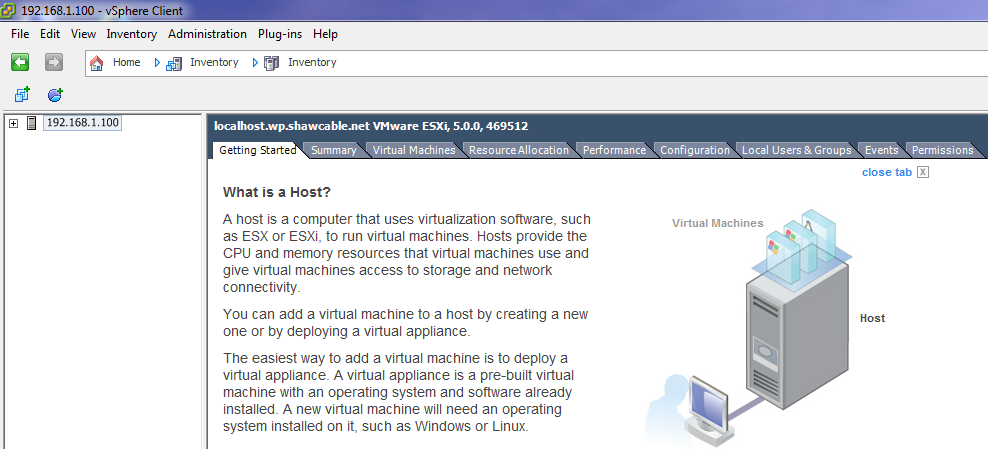
2) Next, select your host and click the Configuration tab
3) Under the Software pane on the left side, click on Virtual Machine Startup/Shutdown
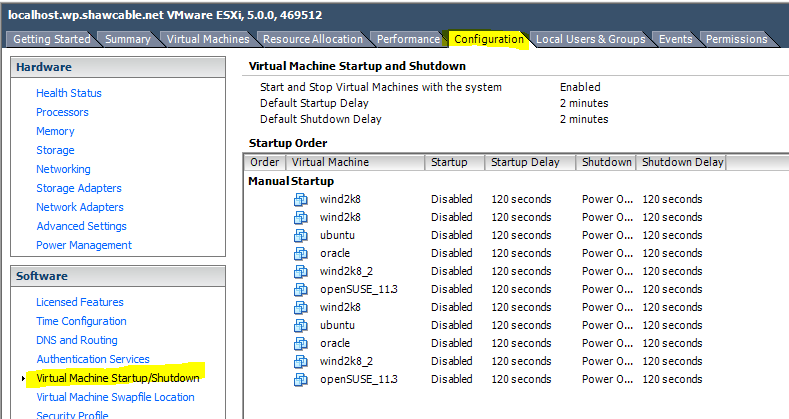
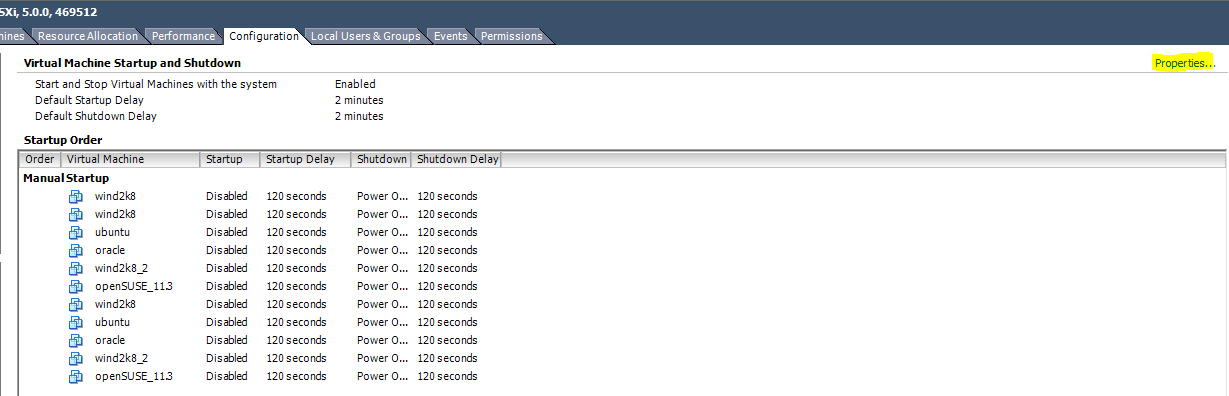
4) Here’s where it get’s interesting. See all the Disabled labels under the Startup column? We need to switch this to enabled. First click on the Properties… link on the top right of the list.
5) To enable automatic startup, check the Allow virtual machines to start and stop automatically with the system
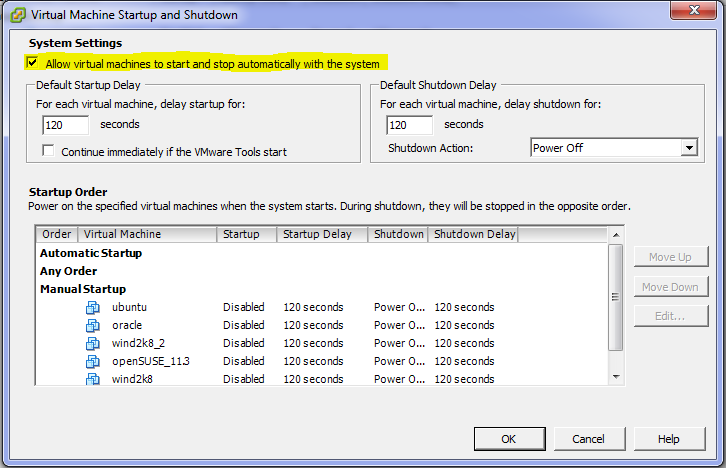
6) This is where I struggled for a couple seconds. I thought you would be able to set the starup type for each machine by clicking in the Startup column or selecting a machine and clicking Edit… Unfortunatly, that is not how it works and the Edit button remains disabled until the machine is set up to automatically start.

To get a machine to start up automatically and the be able to edit the machine’s startup settings, you must select a virtual guest and click the Move Up button until the machine is under the Automatic Startup group.

7) Click OK and you’re done

There you go. Now when the host machine is restarted, both my Ubuntu Linux and Oracle Enterprise Linux servers will start up automatically, in the order listed above. To keep resource demands in check you can also set up specific delays to stagger your guest start ups.