
Performing backup/restore operations are extremely simple in SQL Server. In most cases, it’s as simple as right-clicking on the database in Management Studio and selecting Tasks->Backup/Restore.
However, if you have ever tried to restore a backup to a database other than the one it came from (such as, same machine/instance with another database name) you may see the following message.
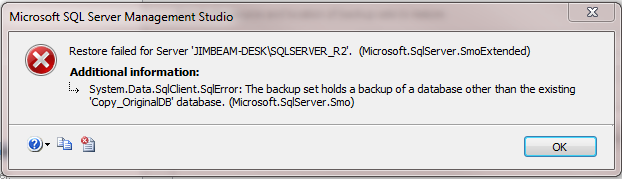
The solution to this problem is to use the Move option on the Restore operation. This can be done in both Management Studio or via T-SQL. However, when trying to use Management Studio, you might ask, “Where is the Move option?” All the other options are labelled beside their appropriate check boxes (all upper case) in the Options page of the Restore Database task
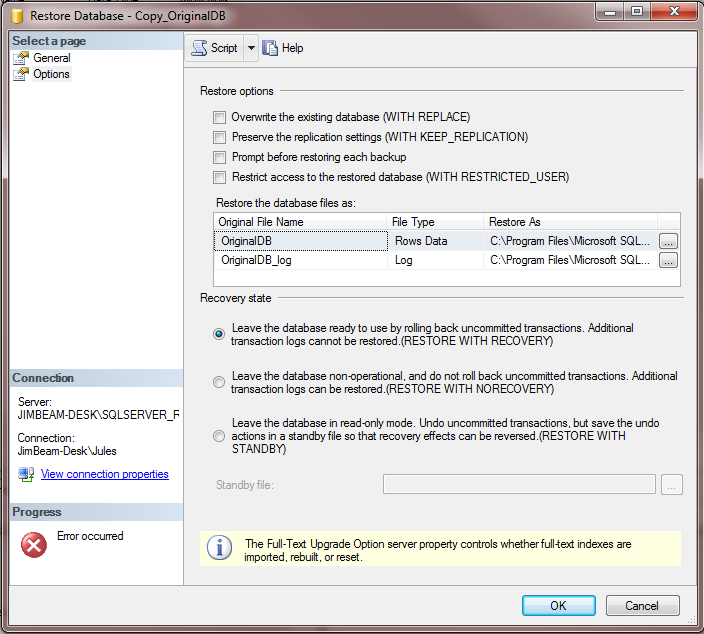
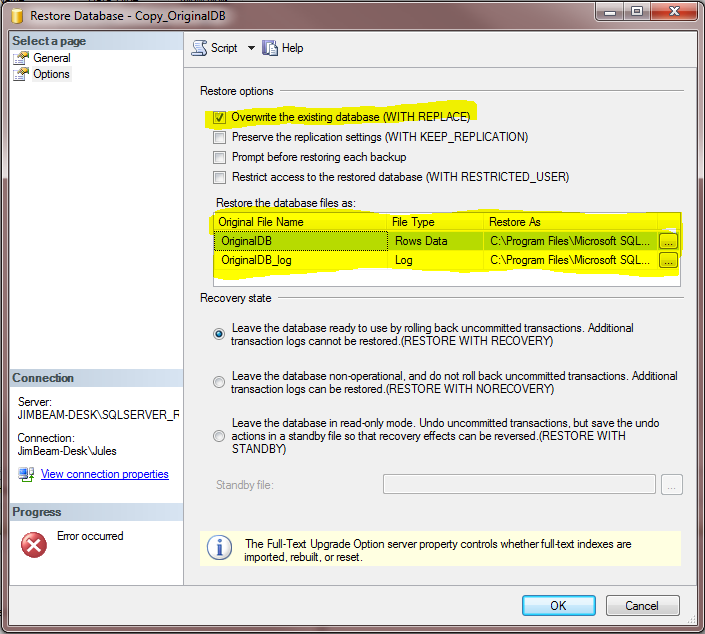
The Move option in Management Studio is actually set when you select different file paths in the Restore the database files as section in the middle of the screen. What you need to do is select a new file location for each file (mdf & log). What I usually do is reset the old paths with the new file paths set up as part of the new database.
Also select the WITH REPLACE option at the top of the screen
In T-SQL you can do the following
USE master;
GO

-- Get number and names of the files in the backup
RESTORE FILELISTONLY
  FROM DISK = 'C:\BAK\OriginalDB.bak';
Gives us information about the files contained in the backup that we can use in the next step

USE master;
GO

-- Do the restore
RESTORE DATABASE [Copy_OriginalDB]
  FROM DISK = 'C:\BAK\OriginalDB.bak'
  WITH
    RECOVERY,
  MOVE 'OriginalDB'
    TO 'C:\Data\Copy_OriginalDB.mdf',
  MOVE 'OriginalDB_Log'
    TO 'C:\Data\Copy_OriginalDB_Log.ldf';
GO
See the following MSDN documents for more info
http://msdn.microsoft.com/en-us/library/ms190447.aspx
http://msdn.microsoft.com/en-us/library/ms173778.aspx